> ## Documentation Index
> Fetch the complete documentation index at: https://radarlabs-rob-onesignal-api-migration.mintlify.site/llms.txt
> Use this file to discover all available pages before exploring further.
# Fraud
Fraud is available on the [Enterprise plan](https://radar.com/pricing).
With Fraud, you can detect GPS spoofing, proxy and VPN usage, device tampering, and much more.
Along with [Regions](/geofencing/regions), you can also detect a user's country and state and mark specific regions as allowed or blocked to comply with regulations.
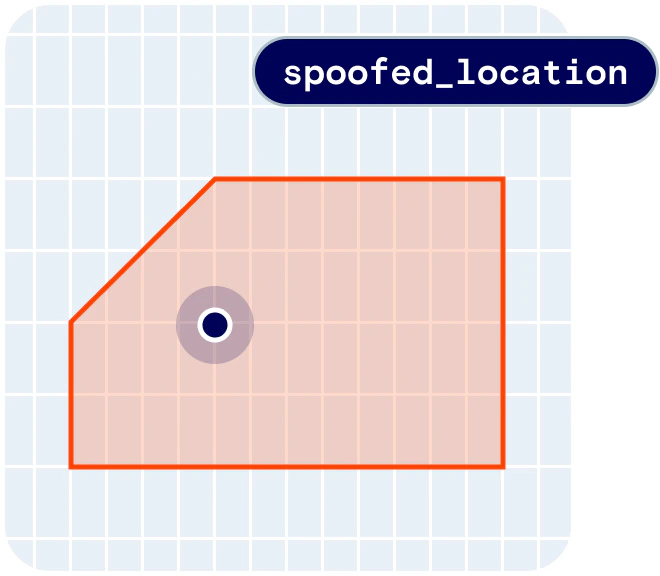 Together, Fraud and Regions provide the following user context:
```json theme={null}
{
"fraud": {
"verified": true,
"passed": false,
"bypassed": false,
"blocked": false,
"mocked": true,
"jumped": false,
"compromised": false,
"inaccurate": false,
"proxy": false,
"sharing": false,
"lastMockedAt": "2023-07-27T17:18:28.536Z",
"lastJumpedAt": "2023-07-27T17:18:28.536Z",
"lastCompromisedAt": null,
"lastInaccurateAt": null,
"lastProxyAt": null,
"lastSharingAt": null
},
"country": {
"code": "US",
"name": "United States",
"flag": "🇺🇸",
"passed": true,
"allowed": true
},
"state": {
"code": "NJ",
"name": "New Jersey",
"passed": true,
"allowed": true,
"distanceToBorder": 1092,
"inBufferZone": false,
"inExclusionZone": false
}
}
```
## Quickstart
First, [sign up](https://radar.com/signup) for Radar and get an API key.
Then, enable Fraud on the [Settings page](https://dashboard.radar.com/settings#fraud-settings).
From there, [integrate the SDK](/sdk/sdk), complete the steps below, and call `Radar.trackVerified()` or `Radar.startTrackingVerified()`. Radar will perform fraud and jurisdiction checks as described below.
## How it works
You can call `Radar.trackOnce()` to accurately detect a user's current [geofences](/geofencing/geofences), current [place](/geofencing/places), or current [country and state](/regions/countries).
However, users can spoof a device's location. For example, a gaming app user may spoof their location to access sports betting features only available in specific states. Or, a retail app user may spoof their location to access offers only available inside a store geofence.
To ensure you can trust a user's location, you can call `Radar.trackVerified()` instead. Radar will collect a variety of fraud signals and perform fraud and jurisdiction checks, calculating flags and a signed geolocation token that you can use for fraud detection and geo-compliance in your app.
## Fraud flags
If fraud detection is enabled, Radar exposes the following flags in `user.fraud`:
* **`mocked`**: Indicates whether a user's location is being mocked, such as in a simulator or using a location spoofing app (e.g., [Fake GPS location](https://play.google.com/store/apps/details?id=com.lexa.fakegps\&hl=en_US\&gl=US)).
* **`jumped`**: Indicates whether the user moved too far too fast (e.g., "jumped" across the country in only a few seconds).
* **`compromised`**: Indicates whether the user's device or app has been compromised (e.g., rooted, jailbroken). On Android, uses the [Play Integrity API](https://developer.android.com/google/play/integrity).
* **`inaccurate`**: Indicates whether the user's location accuracy is too low to pass verification.
* **`sharing`**: Indicates whether the user is using screen sharing or remote desktop software (e.g., using [TeamViewer](https://www.teamviewer.com/en-us/)).
* **`proxy`**: Indicates whether the user's IP address is a known proxy or VPN.
* **`verified`**: Indicates whether the request was made with `Radar.trackVerified()`.
While you can work with individual flags, Radar also exposes a single `user.fraud.passed` flag that indicates whether all fraud checks passed.
Additionally, the `lastMockedAt`, `lastJumpedAt`, `lastCompromisedAt`, `lastInaccurateAt`, `lastProxyAt`, and `lastSharingAt` timestamps indicate the last time that the user failed each fraud check.
Finally, more detailed [failure reasons](#failure-reasons) are also exposed.
## Bypassing checks for testing
If desired, you can bypass fraud checks for individual users using the *Mark as Bypassed* button on the user detail page.
If a user is marked as bypassed, `user.fraud.bypassed = true` and `user.fraud.passed = true`, regardless of whether the user passes fraud checks.
## Blocking users
You can also manually block a user using the *Mark as Blocked* button on the user detail page.
If a user is blocked, `user.fraud.blocked = true` and `user.fraud.passed = false`, regardless of whether the user passes fraud checks.
## Allowed states and countries
With [Regions](/geofencing/regions), you can mark specific countries or states as allowed or blocked to comply with regulations. For example, a sportsbook or daily fantasy sports app may only be allowed to operate in specific US states.
Radar exposes your settings in `user.country.allowed` and `user.state.allowed`.
Additionally, you can enable buffer zones and exclusion zones for different states. If buffer zones and exclusion zones are enabled, `user.state.inBufferZone` and `user.state.inExclusionZone` indicates whether the user is within a buffer zone or exclusion zone.
While you can work with individual flags, Radar also exposes `user.state.passed` and `user.country.passed` flags that indicate whether all jurisdiction checks passed.
Finally, more detailed [failure reasons](#failure-reasons) are also exposed.
Contact your customer success manager for access to buffer zones and exclusion zones.
## Platform-specific configuration
### Android
#### Install plugin
If using [Android SDK](/sdk/android) version `3.25.0` or higher, you must install an additional plugin.
Add the plugin to the `dependencies` section of your app's `build.gradle` file:
```gradle theme={null}
dependencies {
implementation 'io.radar:sdk:3.25.+'
implementation 'io.radar:sdk-fraud:1.0.0'
}
```
If you do not install the plugin, `Radar.trackVerified()` will return `ERROR_PLUGIN`.
#### Initialize SDK
To support the `sharing` flag on Android, pass `fraud = true` to `RadarInitializeOptions` in `Radar.initialize()`.
```java theme={null}
val options = RadarInitializeOptions(
fraud = true
)
Radar.initialize(
context = this,
publishableKey = "prj_test_pk_...",
options = options
)
```
#### Play Integrity API
To support the `compromised` flag on Android, enable the [Play Integrity API](https://developer.android.com/google/play/integrity) on the [Settings page](https://dashboard.radar.com/settings#fraud-settings).
If the user's device or app does not meet [basic integrity checks](https://developer.android.com/google/play/integrity/verdict#device-integrity-field), `user.fraud.compromised = true`.
You must add the Play Integrity API dependency before calling `Radar.trackVerified()`.
Add the dependency to the `dependencies` section of your app's `build.gradle` file:
```java theme={null}
dependencies {
implementation 'com.google.android.play:integrity:1.2.0'
}
```
If `Radar.trackVerified()` returns `ERROR_FORBIDDEN`, check the logs. The Play Services version on the device may be out of date.
#### SSL pinning
To enable SSL pinning and prevent man-in-the-middle attacks, add a `res/xml/network_security_config.xml` file:
```xml theme={null}
localhost
api-verified.radar.io
15ktYXSSU2llpy7YyCgeqUKDBkjcimK/weUcec960sI=
15ktYXSSU2llpy7YyCgeqUKDBkjcimK/weUcec960sI=
```
Then, reference this file in your manifest:
```xml theme={null}
```
Learn more about [Network Security Configuration on Android](https://developer.android.com/training/articles/security-config).
### iOS
#### Install plugin
If using [iOS SDK](/sdk/ios) version `3.26.0` or higher, you must install an additional plugin.
Add the `RadarSDKFraud` package using Swift Package Manager.
If you do not install the plugin, `Radar.trackVerified()` will return `ERROR_PLUGIN`.
#### App Attest
To support the `compromised` flag on iOS, enable [App Attest](https://developer.apple.com/documentation/devicecheck/preparing-to-use-the-app-attest-service) and configure a list of valid [App IDs](https://developer.apple.com/library/archive/documentation/General/Conceptual/DevPedia-CocoaCore/AppID.html) (e.g., `A1B2C3D4E5.com.yourapp.app1,A1B2C3D4E5.com.yourapp.app2`) on the [Settings page](https://dashboard.radar.com/settings#fraud-settings).
If App Attest indicates that the user's device or app has been compromised, `user.fraud.compromised = true`.
App Attest requires iOS 14 and above. If `Radar.trackVerified()` returns `ERROR_FORBIDDEN`, check the logs. The iOS version on the device may not support App Attest.
#### SSL pinning
To enable SSL pinning and prevent man-in-the-middle attacks, add the following to your `Info.plist` file:
```html theme={null}
NSAppTransportSecurity
NSAllowsArbitraryLoads
NSPinnedDomains
api-verified.radar.io
NSIncludesSubdomains
NSPinnedLeafIdentities
SPKI-SHA256-BASE64
15ktYXSSU2llpy7YyCgeqUKDBkjcimK/weUcec960sI=
SPKI-SHA256-BASE64
15ktYXSSU2llpy7YyCgeqUKDBkjcimK/weUcec960sI=
```
Learn more about [SSL pinning on iOS](https://developer.apple.com/news/?id=g9ejcf8y).
### Web and desktop
#### Install plugin
If using [web SDK](/sdk/web) version `5.0.0` or higher, you must install an additional plugin.
In an HTML page, add the SDK script and the plugin script:
```html theme={null}
```
In a web app, install the SDK package and the plugin package from npm:
```bash theme={null}
npm install @radarlabs/plugin-fraud radar-sdk-js
```
#### Companion app and no-download solution
The web SDK supports a companion app solution and a pure-JavaScript no-download solution.
The companion app solution uses the Radar Verify apps to support remote desktop detection with the `sharing` flag, more advanced `mocked` and `proxy` detection, and more stable device IDs. Download the [Radar Verify Mac app](https://app.radar-verify.com/mac/latest) or the [Radar Verify Windows app](https://app.radar-verify.com/windows/latest). By default, `Radar.trackVerified()` expects the Radar Verify app to be running and returns `ERROR_VERIFY_APP` if it is not.
To skip the Radar Verify app and use the no-download solution, pass `{ skipVerifyApp: true }` to `Radar.trackVerified()`, `Radar.startTrackingVerified()`, and `Radar.getVerifiedLocationToken()`.
Contact your customer success manager to learn how you can customize the Radar Verify app installer or branding.
## Verifying user locations
Once the above configuration is complete, you can perform location checks and verify a user's location with just a few lines of code.
Choose your implementation pattern depending on your use cases:
* Less regulated gaming implementations, non-US gaming implementations, and non-gaming implementations should generally choose [Manual location checks](#manual-location-checks) and, on web, the no-download solution.
* US sportsbook and iGaming implementations should generally choose [Automatic location checks with caching](#automatic-location-checks-with-caching) and, on web, the companion app solution.
### Manual location checks
You can call `Radar.trackVerified()` to manually perform a location check. `Radar.trackVerified()` returns a `RadarVerifiedLocationToken` with:
* `passed`: A boolean indicating whether the user passed all fraud and jurisdiction checks (`user.fraud.passed && user.country.passed && user.state.passed`).
* `token`: A tamper-proof JSON Web Token (JWT) that you can send to your server to validate the signature, signed with the *JSON Web Token (JWT) Secret Key* found under *Fraud* on the [Settings page](https://dashboard.radar.com/settings#fraud-settings).
* `failureReasons`: If `passed == false`, an array of more detailed [failure reasons](#failure-reasons).
* `expiresAt`: The datetime when the token expires, by default in 20 minutes, but earlier when close to the border based on compliance requirements.
* `expiresIn`: The number of seconds until the token expires.
* `user`: The user, with detailed information in `user.fraud`, `user.country`, and `user.state`.
* `events`: The events generated, if any.
```swift Swift theme={null}
Radar.trackVerified { (status, token) in
if token?.passed == true {
// allow access, send token to server
} else {
// deny access, show error message
}
}
```
```kotlin Kotlin theme={null}
Radar.trackVerified { status, token ->
if (token?.passed == true) {
// allow access, send token to server
} else {
// deny access, show error message
}
}
```
```javascript Web theme={null}
const skipVerifyApp = false // use true for no-download solution
Radar.trackVerified({ skipVerifyApp }).then((result) => {
const { passed, token, expiresIn, user } = result;
if (passed) {
// allow access, send token to server
} else {
// deny access, show error message
}
}).catch((err) => {
// deny access, show error message
});
```
```javascript React Native theme={null}
Radar.trackVerified().then((result) => {
const { token } = result;
if (token?.passed) {
// allow access, send token to server
} else {
// deny access, show error message
}
}).catch((err) => {
// deny access, show error message
});
```
```javascript Capacitor theme={null}
Radar.trackVerified().then((result) => {
const { token } = result;
if (token?.passed) {
// allow access, send token to server
} else {
// deny access, show error message
}
}).catch((err) => {
// deny access, show error message
});
```
```javascript Flutter theme={null}
var res = await Radar.trackVerified();
```
You can send the JWT to your server and validate the signature using a [JWT library](https://jwt.io/libraries). For example, in JavaScript:
```javascript theme={null}
const jwt = require('jsonwebtoken');
try {
const decoded = jwt.verify(token, SECRET_KEY);
const { user } = decoded;
// token is valid, check payload to allow or deny access
} catch (err) {
// token is invalid, deny access, show error message
}
```
### Automatic location checks with caching
You can call `Radar.startTrackingVerified()` to automatically perform location checks on connection changes, on the specified `interval`, or more frequently if `token.expiresIn < interval` (based on current state, distance to border, and so on).
Instead of calling `Radar.trackVerified()`, which always fetches a fresh location token, you can call `Radar.getVerifiedLocationToken()`, which returns a cached location token immediately if the last location token is still valid, or fetches a fresh location token if not.
If you set a delegate on iOS with `Radar.setVerifiedDelegate()` or a receiver on Android with `Radar.setVerifiedReceiver()`, fresh location tokens are also delivered to `RadarVerifiedDelegate.didUpdateToken()` and `RadarVerifiedReceiver.onTokenUpdated()`, respectively.
For example, to automatically verify the user's location at least every 20 minutes (1200 seconds), without ranging beacons:
```swift Swift theme={null}
Radar.setVerifiedDelegate(delegate)
Radar.startTrackingVerified(interval: 1200, beacons: false)
// get a cached token if available, or fetch a fresh token if not
Radar.getVerifiedLocationToken { (status, token) in
if token?.passed == true {
// allow access, send token to server
} else {
// deny access, show error message
}
}
// delivers fresh tokens to RadarVerifiedDelegate
func didUpdateToken(_ token: RadarVerifiedLocationToken) {
// send token to server
}
```
```kotlin Kotlin theme={null}
Radar.setVerifiedReceiver(receiver)
Radar.startTrackingVerified(interval = 1200, beacons = false)
// get a cached token if available, or fetch a fresh token if not
Radar.getVerifiedLocationToken { status, token ->
if (token?.passed == true) {
// allow access, send token to server
} else {
// deny access, show error message
}
}
// delivers fresh tokens to RadarVerifiedReceiver
override fun onTokenUpdated(context: Context, token: RadarVerifiedLocationToken) {
// send token to server
}
```
```javascript Web theme={null}
const skipVerifyApp = false // use true for no-download solution
Radar.startTrackingVerified({ skipVerifyApp, interval: 1200 });
// get a cached token if available, or fetch a fresh token if not
Radar.getVerifiedLocationToken({ skipVerifyApp }).then((result) => {
const { passed, token, expiresIn, user } = result;
if (passed) {
// allow access, send token to server
} else {
// deny access, show error message
}
}).catch((err) => {
// deny access, show error message
});
Radar.onTokenUpdated((result) => {
const { passed, token, expiresIn, user } = result;
// send token to server
});
```
```javascript React Native theme={null}
Radar.startTrackingVerified({
interval: 1200,
beacons: false,
});
// get a cached token if available, or fetch a fresh token if not
Radar.getVerifiedLocationToken().then((result) => {
const { token } = result;
if (token?.passed) {
// allow access, send token to server
} else {
// deny access, show error message
}
}).catch((err) => {
// deny access, show error message
});
// delivers fresh tokens to listener
Radar.on('token', (result) => {
const { token } = result;
// send token to server
});
```
```javascript Capacitor theme={null}
Radar.startTrackingVerified({
interval: 1200,
beacons: false,
});
// get a cached token if available, or fetch a fresh token if not
Radar.getVerifiedLocationToken().then((result) => {
const { token } = result;
if (token?.passed) {
// allow access, send token to server
} else {
// deny access, show error message
}
}).catch((err) => {
// deny access, show error message
});
// delivers fresh tokens to listener
Radar.addListener('token', (result) => {
const { token } = result;
// send token to server
});
```
```javascript Flutter theme={null}
Radar.startTrackingVerified(1200, false)
// get a cached token if available, or fetch a fresh token if not
var res = await Radar.getVerifiedLocationToken();
// delivers fresh tokens to listener
Radar.onToken(onToken);
```
### Failure reasons
Some more sensitive or proprietary failure reasons are not documented here. Contact your customer success manager for more information.
If `passed == false`, responses include an array of more detailed [failure reasons](#failure-reasons).
* **`country_not_allowed`**: The user's location is in a country that is not allowed based on [jurisdiction settings](#allowed-states-and-countries).
* **`country_not_expected`**: The user's location is in a country that is not expected based on `Radar.setExpectedJurisdiction()`.
* **`country_in_buffer_zone`**: The user's location is too close to [the border of a country](#allowed-states-and-countries), either based on a jurisdiction-specific threshold or based on the location accuracy reported by the device (i.e., a "radius of uncertainty" that overlaps a country border).
* **`country_in_exclusion_zone`**: The user's location is in a [country-specific exclusion zone](#allowed-states-and-countries), if enabled.
* **`state_not_allowed`**: The user's location is in a state or province that is not allowed according to [jurisdiction settings](#allowed-states-and-countries)
* **`state_not_expected`**: The user's location is in a state or province that is not expected according to `Radar.setExpectedJurisdiction()`.
* **`state_in_buffer_zone`**: The user's location is too close to [the border of a state or province](#allowed-states-and-countries), either based on a jurisdiction-specific threshold or based on the location accuracy reported by the device (i.e., a "radius of uncertainty" that overlaps a state or province border).
* **`state_in_exclusion_zone`**: The user's location is in a [state- or province-specific exclusion zone](#allowed-states-and-countries), if enabled.
* **`fraud_blocked_user_id`**: The `userId` of the user is blocked (all platforms).
* **`fraud_blocked_device_id`**: The `deviceId` of the user is blocked (all platforms).
* **`fraud_blocked_ip`**: The IP of the user is blocked (all platforms).
* **`fraud_blocked_mac_address`**: The MAC address of the user is blocked (macOS and Windows only).
* **`fraud_blocked_risk_score_auto_block`**: The user or device was automatically blocked based on a [high risk score](#fraud-flags) (all platforms).
* **`fraud_compromised_jailbroken`**: The user's iOS device is jailbroken (iOS only).
* **`fraud_compromised_app_attest`**: The user's iOS device failed [App Attest](#app-attest) checks (iOS only).
* **`fraud_compromised_play_integrity_api`**: The user's Android device failed [Play Integrity API](#play-integrity-api) basic integrity checks (Android only).
* **`fraud_mocked_from_mock_provider`**: The user's location is mocked or spoofed according to iOS, Android, macOS, or Windows location services (all platforms).
* **`fraud_mocked_known_spoofing_app`**: The user's device is running a known location spoofing app (macOS and Windows only).
* **`fraud_mocked_inconsistent_ip_country`**: The user's location is in a country inconsistent with the IP geolocation country (all platforms).
* **`fraud_jumped_single_device`**: The user's location moved too far too fast (e.g., "jumped" across the country in a few seconds), possibly indicating impossible travel (all platforms).
* **`fraud_jumped_multiple_devices`**: The device's location is inconsistent with another device's location with the same `userId`, possibly indicating account sharing (all platforms).
* **`fraud_inaccurate_exceeded_accuracy_threshold`**: The user's location accuracy reported by the device is too low and exceeds a specified threshold (all platforms).
* **`fraud_sharing_known_screen_sharing_app`**: The user's device is running a known screen sharing or remote desktop app (macOS and Windows only).
* **`fraud_sharing_multiple_displays`**: The user's Android device has multiple displays, indicating possible screen sharing (Android only).
* **`fraud_sharing_virtual_input_device`**: The user's Android device has a virtual input device, indicating possible screen sharing (Android only).
* **`fraud_proxy_known_proxy_ip`**: The user's IP address is a known proxy or VPN (all platforms).
* **`fraud_proxy_network_configuration`**: The user's network configuration indicates the use of a proxy or VPN (macOS and Windows only).
### Troubleshooting
To troubleshoot a failed geolocation check, go to the [Locations page](https://dashboard.radar.com/geofencing/locations). Use the *Filters* button to filter down to specific user IDs, IP addresses, or jurisdictions, and use the *date filters* to filter down to specific dates or times.
Click on a specific geolocation check to see all the details, including a map view, [failure reasons](#failure-reasons), detailed user, device, IP, and jurisdiction information, and more.
If you need help, please contact your customer success manager.
## User and device risk scores
You can use risk scores to identify high risk users and devices. Risk scores are based on a "strikes" system:
* No strikes = no risk
* 1 strike = low risk
* 2 strikes = medium risk
* 3 strikes = high risk
Users receive strikes for the following fraud signals within a lookback period, by default the last 7 days:
* `mocked`, `jumped`, `compromised`, `sharing`, and `proxy` flags: 1 strike
* More than 5 user IDs per device ID: 1 strike
* More than 5 device IDs per user ID: 1 strike
When the risk score changes for a user or device, it also changes for all associated users and devices (i.e., all users associated with that device ID, or all device IDs associated with that user).
The fraud signals, number of strikes per fraud signal, and lookback period are configurable.
To receive real-time email alerts when users reach high risk, and to receive a weekly report with high risk users, set a *Notification email* under *Fraud* on the [Settings page](https://dashboard.radar.com/settings#fraud-settings).
You can also automatically block high risk users.
Contact your customer success manager for access to user and device risk scores, or to automatically block high risk users.
## Error handling
On errors or failed fraud checks, you may want to display a message to the end user. For example:
* On **`ERROR_PERMISSIONS`**: Unable to determine your location. Please make sure you've granted location permissions and try again.
* On **`ERROR_LOCATION`**: Unable to determine your location. Please make sure location services and wi-fi are enabled and try again.
* On **`ERROR_NETWORK`**: Unable to determine your location. Please make sure you're connected to the Internet and try again.
* On **`country.allowed == false`** or **`state.allowed == false`**: Unable to verify your location. Please make sure you're in an allowed area and try again.
* On **`fraud.proxy == true`**: Unable to verify your location. Please disconnect from any VPNs or proxy servers you may be using and try again.
* On other error cases, or as a fallback: Unable to verify your location. Please contact support.
Together, Fraud and Regions provide the following user context:
```json theme={null}
{
"fraud": {
"verified": true,
"passed": false,
"bypassed": false,
"blocked": false,
"mocked": true,
"jumped": false,
"compromised": false,
"inaccurate": false,
"proxy": false,
"sharing": false,
"lastMockedAt": "2023-07-27T17:18:28.536Z",
"lastJumpedAt": "2023-07-27T17:18:28.536Z",
"lastCompromisedAt": null,
"lastInaccurateAt": null,
"lastProxyAt": null,
"lastSharingAt": null
},
"country": {
"code": "US",
"name": "United States",
"flag": "🇺🇸",
"passed": true,
"allowed": true
},
"state": {
"code": "NJ",
"name": "New Jersey",
"passed": true,
"allowed": true,
"distanceToBorder": 1092,
"inBufferZone": false,
"inExclusionZone": false
}
}
```
## Quickstart
First, [sign up](https://radar.com/signup) for Radar and get an API key.
Then, enable Fraud on the [Settings page](https://dashboard.radar.com/settings#fraud-settings).
From there, [integrate the SDK](/sdk/sdk), complete the steps below, and call `Radar.trackVerified()` or `Radar.startTrackingVerified()`. Radar will perform fraud and jurisdiction checks as described below.
## How it works
You can call `Radar.trackOnce()` to accurately detect a user's current [geofences](/geofencing/geofences), current [place](/geofencing/places), or current [country and state](/regions/countries).
However, users can spoof a device's location. For example, a gaming app user may spoof their location to access sports betting features only available in specific states. Or, a retail app user may spoof their location to access offers only available inside a store geofence.
To ensure you can trust a user's location, you can call `Radar.trackVerified()` instead. Radar will collect a variety of fraud signals and perform fraud and jurisdiction checks, calculating flags and a signed geolocation token that you can use for fraud detection and geo-compliance in your app.
## Fraud flags
If fraud detection is enabled, Radar exposes the following flags in `user.fraud`:
* **`mocked`**: Indicates whether a user's location is being mocked, such as in a simulator or using a location spoofing app (e.g., [Fake GPS location](https://play.google.com/store/apps/details?id=com.lexa.fakegps\&hl=en_US\&gl=US)).
* **`jumped`**: Indicates whether the user moved too far too fast (e.g., "jumped" across the country in only a few seconds).
* **`compromised`**: Indicates whether the user's device or app has been compromised (e.g., rooted, jailbroken). On Android, uses the [Play Integrity API](https://developer.android.com/google/play/integrity).
* **`inaccurate`**: Indicates whether the user's location accuracy is too low to pass verification.
* **`sharing`**: Indicates whether the user is using screen sharing or remote desktop software (e.g., using [TeamViewer](https://www.teamviewer.com/en-us/)).
* **`proxy`**: Indicates whether the user's IP address is a known proxy or VPN.
* **`verified`**: Indicates whether the request was made with `Radar.trackVerified()`.
While you can work with individual flags, Radar also exposes a single `user.fraud.passed` flag that indicates whether all fraud checks passed.
Additionally, the `lastMockedAt`, `lastJumpedAt`, `lastCompromisedAt`, `lastInaccurateAt`, `lastProxyAt`, and `lastSharingAt` timestamps indicate the last time that the user failed each fraud check.
Finally, more detailed [failure reasons](#failure-reasons) are also exposed.
## Bypassing checks for testing
If desired, you can bypass fraud checks for individual users using the *Mark as Bypassed* button on the user detail page.
If a user is marked as bypassed, `user.fraud.bypassed = true` and `user.fraud.passed = true`, regardless of whether the user passes fraud checks.
## Blocking users
You can also manually block a user using the *Mark as Blocked* button on the user detail page.
If a user is blocked, `user.fraud.blocked = true` and `user.fraud.passed = false`, regardless of whether the user passes fraud checks.
## Allowed states and countries
With [Regions](/geofencing/regions), you can mark specific countries or states as allowed or blocked to comply with regulations. For example, a sportsbook or daily fantasy sports app may only be allowed to operate in specific US states.
Radar exposes your settings in `user.country.allowed` and `user.state.allowed`.
Additionally, you can enable buffer zones and exclusion zones for different states. If buffer zones and exclusion zones are enabled, `user.state.inBufferZone` and `user.state.inExclusionZone` indicates whether the user is within a buffer zone or exclusion zone.
While you can work with individual flags, Radar also exposes `user.state.passed` and `user.country.passed` flags that indicate whether all jurisdiction checks passed.
Finally, more detailed [failure reasons](#failure-reasons) are also exposed.
Contact your customer success manager for access to buffer zones and exclusion zones.
## Platform-specific configuration
### Android
#### Install plugin
If using [Android SDK](/sdk/android) version `3.25.0` or higher, you must install an additional plugin.
Add the plugin to the `dependencies` section of your app's `build.gradle` file:
```gradle theme={null}
dependencies {
implementation 'io.radar:sdk:3.25.+'
implementation 'io.radar:sdk-fraud:1.0.0'
}
```
If you do not install the plugin, `Radar.trackVerified()` will return `ERROR_PLUGIN`.
#### Initialize SDK
To support the `sharing` flag on Android, pass `fraud = true` to `RadarInitializeOptions` in `Radar.initialize()`.
```java theme={null}
val options = RadarInitializeOptions(
fraud = true
)
Radar.initialize(
context = this,
publishableKey = "prj_test_pk_...",
options = options
)
```
#### Play Integrity API
To support the `compromised` flag on Android, enable the [Play Integrity API](https://developer.android.com/google/play/integrity) on the [Settings page](https://dashboard.radar.com/settings#fraud-settings).
If the user's device or app does not meet [basic integrity checks](https://developer.android.com/google/play/integrity/verdict#device-integrity-field), `user.fraud.compromised = true`.
You must add the Play Integrity API dependency before calling `Radar.trackVerified()`.
Add the dependency to the `dependencies` section of your app's `build.gradle` file:
```java theme={null}
dependencies {
implementation 'com.google.android.play:integrity:1.2.0'
}
```
If `Radar.trackVerified()` returns `ERROR_FORBIDDEN`, check the logs. The Play Services version on the device may be out of date.
#### SSL pinning
To enable SSL pinning and prevent man-in-the-middle attacks, add a `res/xml/network_security_config.xml` file:
```xml theme={null}
localhost
api-verified.radar.io
15ktYXSSU2llpy7YyCgeqUKDBkjcimK/weUcec960sI=
15ktYXSSU2llpy7YyCgeqUKDBkjcimK/weUcec960sI=
```
Then, reference this file in your manifest:
```xml theme={null}
```
Learn more about [Network Security Configuration on Android](https://developer.android.com/training/articles/security-config).
### iOS
#### Install plugin
If using [iOS SDK](/sdk/ios) version `3.26.0` or higher, you must install an additional plugin.
Add the `RadarSDKFraud` package using Swift Package Manager.
If you do not install the plugin, `Radar.trackVerified()` will return `ERROR_PLUGIN`.
#### App Attest
To support the `compromised` flag on iOS, enable [App Attest](https://developer.apple.com/documentation/devicecheck/preparing-to-use-the-app-attest-service) and configure a list of valid [App IDs](https://developer.apple.com/library/archive/documentation/General/Conceptual/DevPedia-CocoaCore/AppID.html) (e.g., `A1B2C3D4E5.com.yourapp.app1,A1B2C3D4E5.com.yourapp.app2`) on the [Settings page](https://dashboard.radar.com/settings#fraud-settings).
If App Attest indicates that the user's device or app has been compromised, `user.fraud.compromised = true`.
App Attest requires iOS 14 and above. If `Radar.trackVerified()` returns `ERROR_FORBIDDEN`, check the logs. The iOS version on the device may not support App Attest.
#### SSL pinning
To enable SSL pinning and prevent man-in-the-middle attacks, add the following to your `Info.plist` file:
```html theme={null}
NSAppTransportSecurity
NSAllowsArbitraryLoads
NSPinnedDomains
api-verified.radar.io
NSIncludesSubdomains
NSPinnedLeafIdentities
SPKI-SHA256-BASE64
15ktYXSSU2llpy7YyCgeqUKDBkjcimK/weUcec960sI=
SPKI-SHA256-BASE64
15ktYXSSU2llpy7YyCgeqUKDBkjcimK/weUcec960sI=
```
Learn more about [SSL pinning on iOS](https://developer.apple.com/news/?id=g9ejcf8y).
### Web and desktop
#### Install plugin
If using [web SDK](/sdk/web) version `5.0.0` or higher, you must install an additional plugin.
In an HTML page, add the SDK script and the plugin script:
```html theme={null}
```
In a web app, install the SDK package and the plugin package from npm:
```bash theme={null}
npm install @radarlabs/plugin-fraud radar-sdk-js
```
#### Companion app and no-download solution
The web SDK supports a companion app solution and a pure-JavaScript no-download solution.
The companion app solution uses the Radar Verify apps to support remote desktop detection with the `sharing` flag, more advanced `mocked` and `proxy` detection, and more stable device IDs. Download the [Radar Verify Mac app](https://app.radar-verify.com/mac/latest) or the [Radar Verify Windows app](https://app.radar-verify.com/windows/latest). By default, `Radar.trackVerified()` expects the Radar Verify app to be running and returns `ERROR_VERIFY_APP` if it is not.
To skip the Radar Verify app and use the no-download solution, pass `{ skipVerifyApp: true }` to `Radar.trackVerified()`, `Radar.startTrackingVerified()`, and `Radar.getVerifiedLocationToken()`.
Contact your customer success manager to learn how you can customize the Radar Verify app installer or branding.
## Verifying user locations
Once the above configuration is complete, you can perform location checks and verify a user's location with just a few lines of code.
Choose your implementation pattern depending on your use cases:
* Less regulated gaming implementations, non-US gaming implementations, and non-gaming implementations should generally choose [Manual location checks](#manual-location-checks) and, on web, the no-download solution.
* US sportsbook and iGaming implementations should generally choose [Automatic location checks with caching](#automatic-location-checks-with-caching) and, on web, the companion app solution.
### Manual location checks
You can call `Radar.trackVerified()` to manually perform a location check. `Radar.trackVerified()` returns a `RadarVerifiedLocationToken` with:
* `passed`: A boolean indicating whether the user passed all fraud and jurisdiction checks (`user.fraud.passed && user.country.passed && user.state.passed`).
* `token`: A tamper-proof JSON Web Token (JWT) that you can send to your server to validate the signature, signed with the *JSON Web Token (JWT) Secret Key* found under *Fraud* on the [Settings page](https://dashboard.radar.com/settings#fraud-settings).
* `failureReasons`: If `passed == false`, an array of more detailed [failure reasons](#failure-reasons).
* `expiresAt`: The datetime when the token expires, by default in 20 minutes, but earlier when close to the border based on compliance requirements.
* `expiresIn`: The number of seconds until the token expires.
* `user`: The user, with detailed information in `user.fraud`, `user.country`, and `user.state`.
* `events`: The events generated, if any.
```swift Swift theme={null}
Radar.trackVerified { (status, token) in
if token?.passed == true {
// allow access, send token to server
} else {
// deny access, show error message
}
}
```
```kotlin Kotlin theme={null}
Radar.trackVerified { status, token ->
if (token?.passed == true) {
// allow access, send token to server
} else {
// deny access, show error message
}
}
```
```javascript Web theme={null}
const skipVerifyApp = false // use true for no-download solution
Radar.trackVerified({ skipVerifyApp }).then((result) => {
const { passed, token, expiresIn, user } = result;
if (passed) {
// allow access, send token to server
} else {
// deny access, show error message
}
}).catch((err) => {
// deny access, show error message
});
```
```javascript React Native theme={null}
Radar.trackVerified().then((result) => {
const { token } = result;
if (token?.passed) {
// allow access, send token to server
} else {
// deny access, show error message
}
}).catch((err) => {
// deny access, show error message
});
```
```javascript Capacitor theme={null}
Radar.trackVerified().then((result) => {
const { token } = result;
if (token?.passed) {
// allow access, send token to server
} else {
// deny access, show error message
}
}).catch((err) => {
// deny access, show error message
});
```
```javascript Flutter theme={null}
var res = await Radar.trackVerified();
```
You can send the JWT to your server and validate the signature using a [JWT library](https://jwt.io/libraries). For example, in JavaScript:
```javascript theme={null}
const jwt = require('jsonwebtoken');
try {
const decoded = jwt.verify(token, SECRET_KEY);
const { user } = decoded;
// token is valid, check payload to allow or deny access
} catch (err) {
// token is invalid, deny access, show error message
}
```
### Automatic location checks with caching
You can call `Radar.startTrackingVerified()` to automatically perform location checks on connection changes, on the specified `interval`, or more frequently if `token.expiresIn < interval` (based on current state, distance to border, and so on).
Instead of calling `Radar.trackVerified()`, which always fetches a fresh location token, you can call `Radar.getVerifiedLocationToken()`, which returns a cached location token immediately if the last location token is still valid, or fetches a fresh location token if not.
If you set a delegate on iOS with `Radar.setVerifiedDelegate()` or a receiver on Android with `Radar.setVerifiedReceiver()`, fresh location tokens are also delivered to `RadarVerifiedDelegate.didUpdateToken()` and `RadarVerifiedReceiver.onTokenUpdated()`, respectively.
For example, to automatically verify the user's location at least every 20 minutes (1200 seconds), without ranging beacons:
```swift Swift theme={null}
Radar.setVerifiedDelegate(delegate)
Radar.startTrackingVerified(interval: 1200, beacons: false)
// get a cached token if available, or fetch a fresh token if not
Radar.getVerifiedLocationToken { (status, token) in
if token?.passed == true {
// allow access, send token to server
} else {
// deny access, show error message
}
}
// delivers fresh tokens to RadarVerifiedDelegate
func didUpdateToken(_ token: RadarVerifiedLocationToken) {
// send token to server
}
```
```kotlin Kotlin theme={null}
Radar.setVerifiedReceiver(receiver)
Radar.startTrackingVerified(interval = 1200, beacons = false)
// get a cached token if available, or fetch a fresh token if not
Radar.getVerifiedLocationToken { status, token ->
if (token?.passed == true) {
// allow access, send token to server
} else {
// deny access, show error message
}
}
// delivers fresh tokens to RadarVerifiedReceiver
override fun onTokenUpdated(context: Context, token: RadarVerifiedLocationToken) {
// send token to server
}
```
```javascript Web theme={null}
const skipVerifyApp = false // use true for no-download solution
Radar.startTrackingVerified({ skipVerifyApp, interval: 1200 });
// get a cached token if available, or fetch a fresh token if not
Radar.getVerifiedLocationToken({ skipVerifyApp }).then((result) => {
const { passed, token, expiresIn, user } = result;
if (passed) {
// allow access, send token to server
} else {
// deny access, show error message
}
}).catch((err) => {
// deny access, show error message
});
Radar.onTokenUpdated((result) => {
const { passed, token, expiresIn, user } = result;
// send token to server
});
```
```javascript React Native theme={null}
Radar.startTrackingVerified({
interval: 1200,
beacons: false,
});
// get a cached token if available, or fetch a fresh token if not
Radar.getVerifiedLocationToken().then((result) => {
const { token } = result;
if (token?.passed) {
// allow access, send token to server
} else {
// deny access, show error message
}
}).catch((err) => {
// deny access, show error message
});
// delivers fresh tokens to listener
Radar.on('token', (result) => {
const { token } = result;
// send token to server
});
```
```javascript Capacitor theme={null}
Radar.startTrackingVerified({
interval: 1200,
beacons: false,
});
// get a cached token if available, or fetch a fresh token if not
Radar.getVerifiedLocationToken().then((result) => {
const { token } = result;
if (token?.passed) {
// allow access, send token to server
} else {
// deny access, show error message
}
}).catch((err) => {
// deny access, show error message
});
// delivers fresh tokens to listener
Radar.addListener('token', (result) => {
const { token } = result;
// send token to server
});
```
```javascript Flutter theme={null}
Radar.startTrackingVerified(1200, false)
// get a cached token if available, or fetch a fresh token if not
var res = await Radar.getVerifiedLocationToken();
// delivers fresh tokens to listener
Radar.onToken(onToken);
```
### Failure reasons
Some more sensitive or proprietary failure reasons are not documented here. Contact your customer success manager for more information.
If `passed == false`, responses include an array of more detailed [failure reasons](#failure-reasons).
* **`country_not_allowed`**: The user's location is in a country that is not allowed based on [jurisdiction settings](#allowed-states-and-countries).
* **`country_not_expected`**: The user's location is in a country that is not expected based on `Radar.setExpectedJurisdiction()`.
* **`country_in_buffer_zone`**: The user's location is too close to [the border of a country](#allowed-states-and-countries), either based on a jurisdiction-specific threshold or based on the location accuracy reported by the device (i.e., a "radius of uncertainty" that overlaps a country border).
* **`country_in_exclusion_zone`**: The user's location is in a [country-specific exclusion zone](#allowed-states-and-countries), if enabled.
* **`state_not_allowed`**: The user's location is in a state or province that is not allowed according to [jurisdiction settings](#allowed-states-and-countries)
* **`state_not_expected`**: The user's location is in a state or province that is not expected according to `Radar.setExpectedJurisdiction()`.
* **`state_in_buffer_zone`**: The user's location is too close to [the border of a state or province](#allowed-states-and-countries), either based on a jurisdiction-specific threshold or based on the location accuracy reported by the device (i.e., a "radius of uncertainty" that overlaps a state or province border).
* **`state_in_exclusion_zone`**: The user's location is in a [state- or province-specific exclusion zone](#allowed-states-and-countries), if enabled.
* **`fraud_blocked_user_id`**: The `userId` of the user is blocked (all platforms).
* **`fraud_blocked_device_id`**: The `deviceId` of the user is blocked (all platforms).
* **`fraud_blocked_ip`**: The IP of the user is blocked (all platforms).
* **`fraud_blocked_mac_address`**: The MAC address of the user is blocked (macOS and Windows only).
* **`fraud_blocked_risk_score_auto_block`**: The user or device was automatically blocked based on a [high risk score](#fraud-flags) (all platforms).
* **`fraud_compromised_jailbroken`**: The user's iOS device is jailbroken (iOS only).
* **`fraud_compromised_app_attest`**: The user's iOS device failed [App Attest](#app-attest) checks (iOS only).
* **`fraud_compromised_play_integrity_api`**: The user's Android device failed [Play Integrity API](#play-integrity-api) basic integrity checks (Android only).
* **`fraud_mocked_from_mock_provider`**: The user's location is mocked or spoofed according to iOS, Android, macOS, or Windows location services (all platforms).
* **`fraud_mocked_known_spoofing_app`**: The user's device is running a known location spoofing app (macOS and Windows only).
* **`fraud_mocked_inconsistent_ip_country`**: The user's location is in a country inconsistent with the IP geolocation country (all platforms).
* **`fraud_jumped_single_device`**: The user's location moved too far too fast (e.g., "jumped" across the country in a few seconds), possibly indicating impossible travel (all platforms).
* **`fraud_jumped_multiple_devices`**: The device's location is inconsistent with another device's location with the same `userId`, possibly indicating account sharing (all platforms).
* **`fraud_inaccurate_exceeded_accuracy_threshold`**: The user's location accuracy reported by the device is too low and exceeds a specified threshold (all platforms).
* **`fraud_sharing_known_screen_sharing_app`**: The user's device is running a known screen sharing or remote desktop app (macOS and Windows only).
* **`fraud_sharing_multiple_displays`**: The user's Android device has multiple displays, indicating possible screen sharing (Android only).
* **`fraud_sharing_virtual_input_device`**: The user's Android device has a virtual input device, indicating possible screen sharing (Android only).
* **`fraud_proxy_known_proxy_ip`**: The user's IP address is a known proxy or VPN (all platforms).
* **`fraud_proxy_network_configuration`**: The user's network configuration indicates the use of a proxy or VPN (macOS and Windows only).
### Troubleshooting
To troubleshoot a failed geolocation check, go to the [Locations page](https://dashboard.radar.com/geofencing/locations). Use the *Filters* button to filter down to specific user IDs, IP addresses, or jurisdictions, and use the *date filters* to filter down to specific dates or times.
Click on a specific geolocation check to see all the details, including a map view, [failure reasons](#failure-reasons), detailed user, device, IP, and jurisdiction information, and more.
If you need help, please contact your customer success manager.
## User and device risk scores
You can use risk scores to identify high risk users and devices. Risk scores are based on a "strikes" system:
* No strikes = no risk
* 1 strike = low risk
* 2 strikes = medium risk
* 3 strikes = high risk
Users receive strikes for the following fraud signals within a lookback period, by default the last 7 days:
* `mocked`, `jumped`, `compromised`, `sharing`, and `proxy` flags: 1 strike
* More than 5 user IDs per device ID: 1 strike
* More than 5 device IDs per user ID: 1 strike
When the risk score changes for a user or device, it also changes for all associated users and devices (i.e., all users associated with that device ID, or all device IDs associated with that user).
The fraud signals, number of strikes per fraud signal, and lookback period are configurable.
To receive real-time email alerts when users reach high risk, and to receive a weekly report with high risk users, set a *Notification email* under *Fraud* on the [Settings page](https://dashboard.radar.com/settings#fraud-settings).
You can also automatically block high risk users.
Contact your customer success manager for access to user and device risk scores, or to automatically block high risk users.
## Error handling
On errors or failed fraud checks, you may want to display a message to the end user. For example:
* On **`ERROR_PERMISSIONS`**: Unable to determine your location. Please make sure you've granted location permissions and try again.
* On **`ERROR_LOCATION`**: Unable to determine your location. Please make sure location services and wi-fi are enabled and try again.
* On **`ERROR_NETWORK`**: Unable to determine your location. Please make sure you're connected to the Internet and try again.
* On **`country.allowed == false`** or **`state.allowed == false`**: Unable to verify your location. Please make sure you're in an allowed area and try again.
* On **`fraud.proxy == true`**: Unable to verify your location. Please disconnect from any VPNs or proxy servers you may be using and try again.
* On other error cases, or as a fallback: Unable to verify your location. Please contact support.